 Mevole
Start with words
Describe the subject, light and composition.
IMAGE + VIDEO STUDIO
Create from a text prompt or a reference image.
Image preview selected. Image studio is ready to open.
Illustrative concepts · Local preview, no generation
01 / Find your medium
Keep the same idea in view while you choose the medium, reference and direction that fit your next studio session.
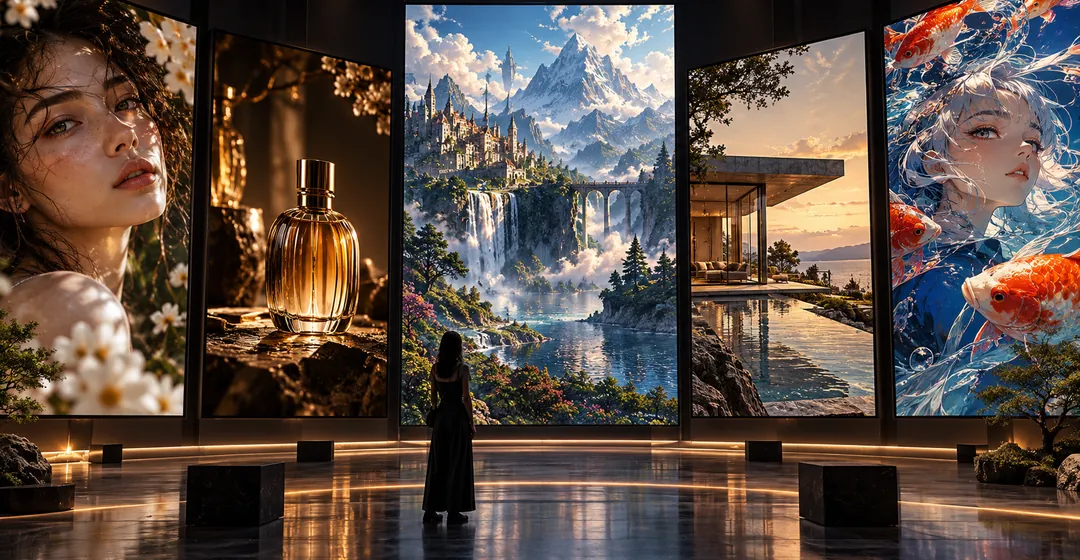


02 / Make a start
Describe the subject, light and composition.
Use a reference image when the selected model supports it.
Review settings and credit cost before generation.
From idea to studio
Describe your subject, scene and intention. Start simple.
Select a model, then use only its supported inputs and settings.
Check the visible credit cost before submitting. Your output appears in the studio.
03 / Choose a perspective
Browse the public image and video directory, then choose the right studio for your idea.
Text to image · Image to image
Text to video · Image to video · Reference
Text to image · Image to image
Text to video · Image to video · Reference
Text to image · Image to image
Text to video · Image to video · Reference
Text to image · Image to image
Text to video · Image to video · Reference
Text to image · Image to image
Text to video · Image to video · Reference
Text to image · Image to image
Text to video · Image to video · Reference
Text to image · Image to image
Text to video · Image to video · Reference
Text to video · Image to video · Reference
Text to image · Image to image
Text to video · Image to video · Reference
Text to image · Image to image
Text to video · Image to video · Reference
Text to image · Image to image
Text to image · Image to image
Text to image · Image to image
Text to image · Image to image
Text to image · Image to image
Text to image · Image to image
Text to image · Image to image
A few answers
Choose the image or video studio. Select a model and a supported mode, then review the inputs and credit cost before submitting.
The model directory lists the models currently enabled for public use in Mevole. Availability and input options depend on the selected model.
See Pricing for current subscription and credit pack options. The studio shows the credit cost for your selected model and settings.
Use a reference only when your chosen model and mode support it. The studio validates the exact requirements. Use images you have permission to use.
Your next chapter
Choose your model and review the inputs, settings and credit cost in the studio.